
Introduction: AWS s3 tutorial beginners
Amazon S3 (Simple Storage Service) is one of the oldest and most widely used services in all of AWS. At its core, it does one thing: store files in the cloud. But beneath that simplicity is a platform trusted by startups and Fortune 500 companies alike — used for everything from hosting static websites to powering petabyte-scale data lakes.
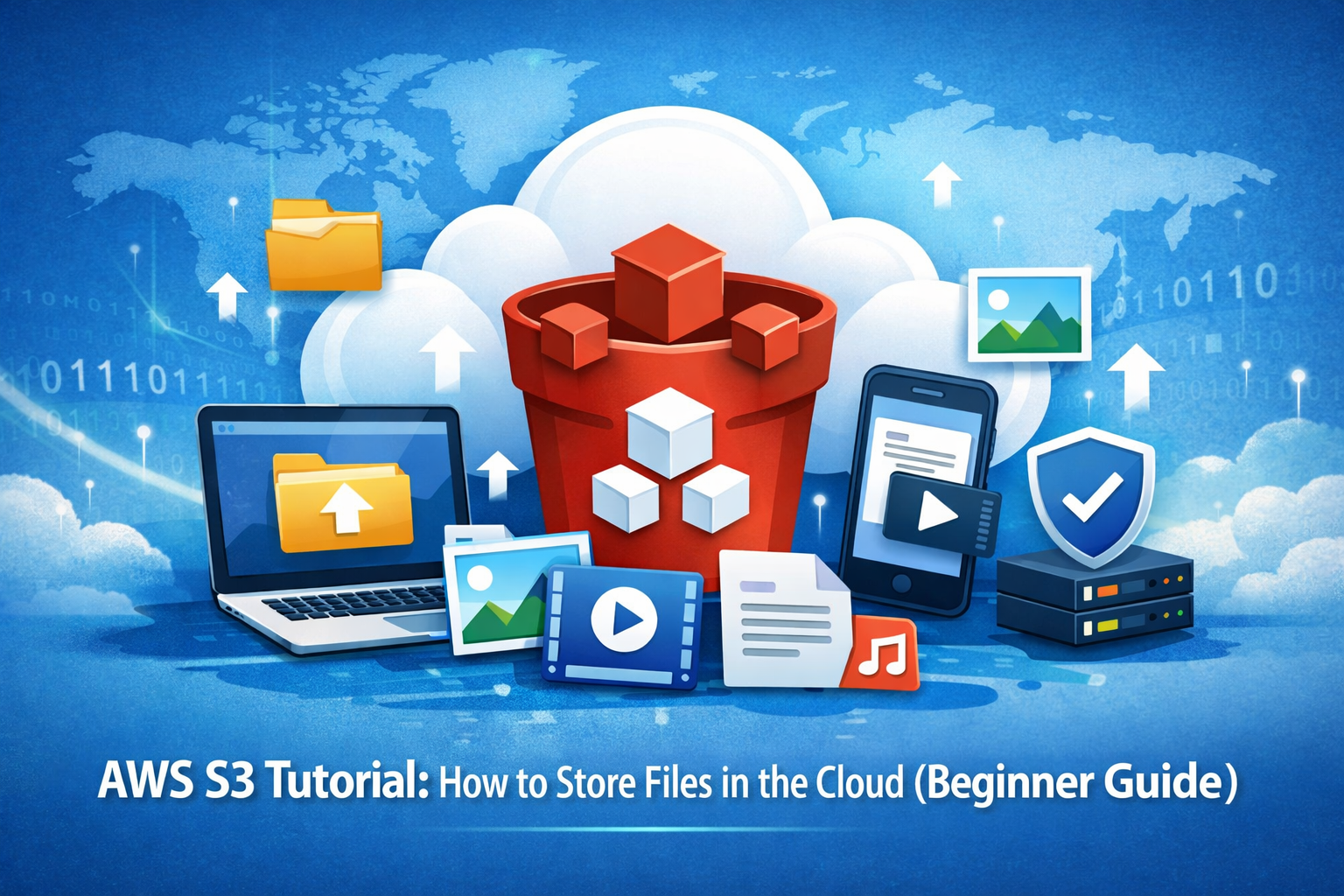
S3 stores data as objects inside buckets. Think of a bucket as a folder in the cloud, and an object as any file — an image, a PDF, a video, a JSON file, a database backup.
A few key facts about S3 before we start:
- Designed for 99.999999999% (11 nines) durability — your files are replicated across multiple data centres automatically
- Virtually unlimited storage — no capacity limit to worry about
- Pay only for what you use — no upfront commitments
- Free tier: 5 GB of standard storage, 20,000 GET requests, and 2,000 PUT requests per month for the first 12 months
In this AWS S3 tutorial for beginners, we will cover everything from creating your first bucket to uploading files programmatically with Python.
Step 1 — Create an AWS Account
If you do not have an AWS account yet, head to aws.amazon.com and click Create an AWS Account. You will need a credit or debit card to sign up, but the free tier covers everything you need for this tutorial.
Once signed in, open the AWS Management Console.
Step 2 — Create an S3 Bucket
A bucket is the top-level container in S3. Every file you store must live inside one.
- In the AWS Console, search for S3 in the top search bar and open it
- Click Create bucket
- Enter a Bucket name — names must be globally unique across all AWS accounts, all lowercase, and 3–63 characters (e.g.
myapp-uploads-2026) - Choose an AWS Region — pick the region closest to your users to reduce latency
- Leave Block all public access enabled for now — we will change this if needed
- Click Create bucket
Your bucket is now created. It is empty and private by default.
⚠️ Bucket names are permanent and globally unique. Once created, the name cannot be changed.
Step 3 — Upload Files via the Console
- Click on your bucket name to open it
- Click Upload
- Click Add files and select any file from your computer, or drag and drop
- Leave all settings as default
- Click Upload
Once complete, the file appears as an object in your bucket. Each object has:
- A key — the object’s name and path within the bucket (e.g.
images/photo.jpg) - A size and storage class
- An object URL for direct access
Step 4 — Understanding Access and Permissions
By default, everything in S3 is private. Only the account owner can access objects. There are several ways to control access:
- Bucket policies — JSON rules applied to the entire bucket
- IAM policies — attached to AWS users or roles to control which S3 actions they can perform
- Pre-signed URLs — temporary URLs that grant time-limited access to private objects
- ACLs — per-object access (legacy approach, not recommended for new projects)
For most web applications, the best practice is to keep buckets private and use IAM roles for your application servers to access S3 internally.
Step 5 — Make Files Publicly Accessible
If you are hosting public assets — images, CSS, JavaScript, downloadable files — you will need public read access.
Step 1 — Disable Block Public Access:
- Click your bucket → Permissions tab
- Click Edit under Block Public Access
- Uncheck Block all public access and confirm
- Click Save changes
Step 2 — Add a bucket policy:
Under Bucket policy, click Edit and paste the following — replacing your-bucket-name:
{
  "Version": "2012-10-17",
  "Statement": [
    {
      "Sid": "PublicReadGetObject",
      "Effect": "Allow",
      "Principal": "*",
      "Action": "s3:GetObject",
      "Resource": "arn:aws:s3:::your-bucket-name/*"
    }
  ]
}
Click Save changes. Every object in your bucket is now publicly readable at:
https://your-bucket-name.s3.your-region.amazonaws.com/filename.jpg
Step 6 — Use the AWS CLI with S3
The AWS CLI lets you manage S3 from your terminal — far quicker than the console for bulk operations.
After installing, configure it:
aws configure
# Enter your Access Key ID, Secret Access Key, and default region
You can generate access keys in the AWS Console under IAM → Users → Security credentials.
Common S3 CLI commands:
# List all your buckets
aws s3 ls

# List objects in a specific bucket
aws s3 ls s3://your-bucket-name

# Upload a file
aws s3 cp photo.jpg s3://your-bucket-name/

# Upload to a subfolder (prefix)
aws s3 cp photo.jpg s3://your-bucket-name/images/

# Download a file
aws s3 cp s3://your-bucket-name/photo.jpg ./photo.jpg

# Sync a local folder to S3 (only uploads changed files)
aws s3 sync ./my-website s3://your-bucket-name

# Delete a file
aws s3 rm s3://your-bucket-name/photo.jpg

# Delete all objects in a bucket
aws s3 rm s3://your-bucket-name --recursive
Step 7 — Upload Files with Python (boto3)
boto3 is the official AWS SDK for Python. Install it with:
pip install boto3
Set credentials as environment variables — never hardcode them:
export AWS_ACCESS_KEY_ID=your-access-key
export AWS_SECRET_ACCESS_KEY=your-secret-key
export AWS_DEFAULT_REGION=us-east-1
Upload a file:
import boto3

s3 = boto3.client("s3")

s3.upload_file(
    Filename="photo.jpg",         # local path
    Bucket="your-bucket-name",    # your bucket
    Key="images/photo.jpg"        # destination path in S3
)

print("Upload complete")
Download a file:
s3.download_file(
    Bucket="your-bucket-name",
    Key="images/photo.jpg",
    Filename="downloaded-photo.jpg"
)
List all objects in a bucket:
response = s3.list_objects_v2(Bucket="your-bucket-name")

for obj in response.get("Contents", []):
    print(obj["Key"], obj["Size"])
Generate a pre-signed URL (temporary access to a private file):
url = s3.generate_presigned_url(
    "get_object",
    Params={"Bucket": "your-bucket-name", "Key": "private/report.pdf"},
    ExpiresIn=3600  # URL expires after 1 hour
)

print(url)
Pre-signed URLs are great for sharing private files without making the bucket public. They expire automatically after the time you set.
Step 8 — Host a Static Website on S3
S3 can serve a static website — HTML, CSS, JavaScript, images — with no web server required. It is completely free within the free tier for low-traffic sites.
- Upload your website files (including
index.html) to your bucket - Make the bucket publicly readable using the bucket policy from Step 5
- In your bucket, go to Properties → Static website hosting → Edit
- Select Enable and set the Index document to
index.html - Optionally add
404.htmlas the Error document - Click Save changes
Your website is now live at the S3 website endpoint:
http://your-bucket-name.s3-website.your-region.amazonaws.com
For a custom domain, point a CNAME record at this URL or put AWS CloudFront in front of S3 for HTTPS and better performance globally.
Best Practices and Cost Tips
Keep buckets private by default
Only make objects public when necessary. Use pre-signed URLs for time-limited access to private content instead of opening everything publicly.
Use IAM roles instead of access keys for production apps
If your app runs on EC2 or Lambda, assign it an IAM role with S3 permissions. This eliminates the need to store access keys anywhere.
Enable versioning for important data
Versioning keeps every previous version of every object. If a file is accidentally overwritten or deleted, you can restore it:
aws s3api put-bucket-versioning \
  --bucket your-bucket-name \
  --versioning-configuration Status=Enabled
Use lifecycle rules to reduce costs
Move old objects to cheaper storage classes automatically:
- S3 Standard — frequent access (most expensive)
- S3 Standard-IA — infrequent access (cheaper)
- S3 Glacier — archival, accessed rarely (cheapest)
Set lifecycle rules via Management → Lifecycle rules in the bucket console.
Monitor your free tier usage
The AWS Billing console shows your free tier usage in real time. Check it monthly to avoid surprise charges.
Final Thoughts
Amazon S3 is one of the most useful cloud services you can learn as a developer. Once you understand buckets and objects, everything else — permissions, CLI, boto3, static hosting — builds naturally on top.
Here is a quick recap of what this AWS S3 tutorial covered:
- Creating a bucket in the right region
- Uploading files through the AWS Console
- Understanding private vs public access and bucket policies
- Managing S3 from the terminal with the AWS CLI
- Uploading, downloading, listing, and generating pre-signed URLs with Python boto3
- Hosting a static website directly from S3
- Security and cost best practices
Ready to go further? Check out our guide on deploying a Node.js app with Docker or our beginner guide to deploying on Vercel.
S3 is the foundation of cloud storage on AWS. Once you are comfortable with it, almost every other AWS service becomes easier to understand.


Leave a Reply