
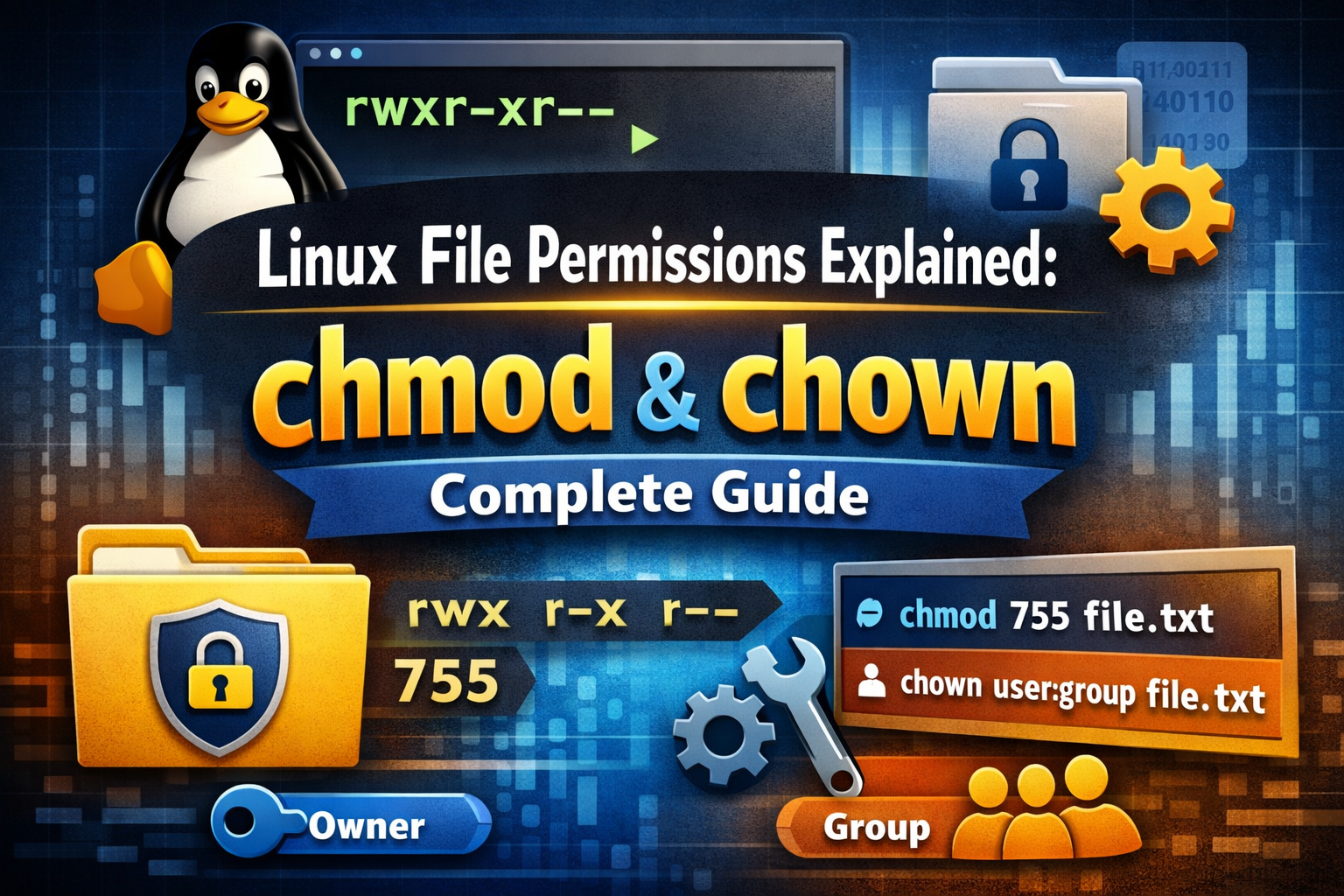
Introduction
If you have ever seen a string like -rwxr-xr-- in a terminal and had no idea what it means, you are not alone. Linux file permissions confuse almost every developer the first time they encounter them.
But once you understand the system, it clicks fast. Linux permissions are logical, consistent, and powerful — and understanding chmod and chown is essential for anyone working with Linux servers, Docker, or any Unix-based system.
In this guide you will learn:
- How to read the Linux permission string
- The three permission types: read, write, and execute
- The three permission groups: owner, group, and others
- How to change permissions with
chmodin both numeric and symbolic modes - How to change file ownership with
chown - Real-world examples you will actually use on the job
Reading the Permission String
Run ls -l in any directory and you will see output like this:
-rwxr-xr--  1  alice  developers  4096  Mar 5 10:00  script.sh
drwxr-xr-x  2  alice  developers  4096  Mar 5 09:45  mydir/
The very first column is the permission string. Let us break down -rwxr-xr--:
- rwx r-x r--
│ │   │   │
│ │   │   └── Others permissions
│ │   └────── Group permissions
│ └────────── Owner permissions
└──────────── File type: - = file, d = directory, l = symlink
Each of the three groups has three characters representing read, write, and execute. A letter means the permission is granted. A dash (-) means it is denied.
The Three Permission Types
There are exactly three permission types in Linux:
- r (read) — for files: view the contents. For directories: list contents with
ls - w (write) — for files: edit or delete the file. For directories: create, rename, or delete files inside
- x (execute) — for files: run the file as a script or binary. For directories: enter it with
cd
The Three Permission Groups
Linux file permissions are defined for three separate groups:
- Owner (user) — the user who owns the file, usually the creator
- Group — a named group of users. All members share the group-level permissions
- Others — everyone else on the system not in the above two categories
Viewing Permissions with ls -l
# List files with permissions
ls -l

# Include hidden files (those starting with a dot)
ls -la

# Check permissions on a specific file
ls -l filename.txt

# Example output:
-rw-r--r--  1  alice  staff  1024  Mar 5 10:00  notes.txt
Reading that example: notes.txt is owned by alice, belongs to the staff group, and permissions break down as:
- Owner (alice):
rw-= read and write, no execute - Group (staff):
r--= read only - Others:
r--= read only
chmod — Numeric (Octal) Mode
chmod stands for change mode. In numeric mode, you use a three-digit number where each digit represents owner, group, and others respectively.
Each permission has a value:
r = 4
w = 2
x = 1
- = 0
You add the values for each group:
rwx = 4+2+1 = 7
rw- = 4+2+0 = 6
r-x = 4+0+1 = 5
r-- = 4+0+0 = 4
--- = 0
So chmod 755 file.sh means:
- 7 =
rwx— owner has full access - 5 =
r-x— group can read and execute - 5 =
r-x— others can read and execute
Most common chmod values:
# Web server files — owner full, group and others read+execute
chmod 755 script.sh

# Config files — owner read+write, everyone else read only
chmod 644 config.txt

# Private scripts — owner only, no one else
chmod 700 private.sh

# Apply permissions recursively to a whole directory
chmod -R 755 /var/www/html
⚠️ Avoid
chmod 777in production. It gives everyone full read, write, and execute — a serious security risk.
chmod — Symbolic Mode
Symbolic mode is more readable and safer to use when you only want to change one permission without recalculating the full number.
u = user (owner)
g = group
o = others
a = all

+ = add permission
- = remove permission
= = set exact permission
Examples:
# Add execute for the owner only
chmod u+x script.sh

# Remove write from the group
chmod g-w file.txt

# Add read for everyone
chmod a+r readme.txt

# Set exact permissions: owner gets rwx, group r-x, others nothing
chmod u=rwx,g=rx,o= file.sh

# Remove execute from everyone
chmod a-x file.txt
Symbolic mode is especially useful when you want to flip a single permission without touching the rest.
chown — Changing File Ownership
chown stands for change owner. It lets you change who owns a file or directory.
# Change owner to bob
chown bob file.txt

# Change owner to bob AND group to developers
chown bob:developers file.txt

# Change group only (note the colon before the group name)
chown :developers file.txt

# Recursively change ownership of a whole directory
chown -R alice:www-data /var/www/myapp

# Check current owner
ls -l file.txt
You will need sudo to change ownership of files you do not own:
sudo chown alice:alice /home/alice/file.txt
Special Permissions: SUID, SGID, Sticky Bit
Beyond standard rwx, Linux has three additional special permission bits.
SUID (Set User ID) — value 4
When set on an executable, it runs as the file owner regardless of who launches it. Used by system commands like passwd.
chmod u+s /usr/bin/somescript
# Or numerically:
chmod 4755 /usr/bin/somescript
SGID (Set Group ID) — value 2
When set on a directory, all new files created inside inherit the directory’s group. Great for shared team folders.
chmod g+s /var/www/project
chmod 2755 /var/www/project
Sticky Bit — value 1
When set on a directory, only the file owner can delete their own files — even if others have write access to the directory. The /tmp directory uses this.
chmod +t /shared/uploads
chmod 1777 /shared/uploads
Real-World Examples
Set up a web server directory
# Nginx/Apache run as www-data — give it read access to web files
chown -R www-data:www-data /var/www/html
chmod -R 755 /var/www/html
Make a shell script executable
# Write your script
nano deploy.sh

# Make it runnable by the owner
chmod u+x deploy.sh

# Run it
./deploy.sh
Protect a private key or .env file
# SSH keys must not be readable by others — SSH will refuse them otherwise
chmod 600 ~/.ssh/id_rsa

# Secrets file — owner only
chmod 600 .env
Shared team project directory
# Create the directory
mkdir /var/www/team-project

# Assign the group
chown :developers /var/www/team-project

# SGID so all new files inherit the group automatically
chmod g+s /var/www/team-project

# Give the group write access
chmod 775 /var/www/team-project
Final Thoughts
Linux file permissions follow a simple, consistent pattern once the three groups (owner, group, others) and three types (read, write, execute) click. Here is a quick reference to keep handy:
| Command | What it does |
|---|---|
ls -l |
View permissions on files and directories |
chmod 755 file |
Owner full, group and others read+execute |
chmod u+x file |
Add execute for owner only |
chmod -R 644 dir/ |
Recursively apply permissions |
chown user:group file |
Change owner and group |
chmod 600 .env |
Owner read-write only, for secrets |
The most common mistakes developers make are setting 777 for convenience and forgetting to add +x before running a script. Both take seconds to fix once you know these commands.
Looking to go deeper on Linux? Check out our guide on how to set up SSH on a Linux server and our tutorial on securing your Linux server as a beginner.
Understanding Linux permissions is one of those skills that saves you hours of frustration — and takes less than an hour to properly learn.




Leave a Reply